Update on 2026-04-02
When personal computers were first introduced, there was a serial RS232 port and a parallel port for connecting peripheral such as printers. The printers were black and white. ASCII Characters were sent over these ports to the printer. The character font was fixed, and one line of characters was printed at a time. With the introduction of dot matrix printers, you could change the font and print graphics. This was done by special codes sent to the printer. These were the predecessors to printer Page Description Languages (PDLs).
Modern PDLs describe the object's geometric and color space rather than the actual bits that make up the object [1]. An object can be a character,a shape (line, circle, arc) or image. The printer then decides how to render the object on the page.
The problem with PDL's is that there are lot of them, and the majority of them were developed by manufacturers and are proprietary. Wikipedia list 45 notable PDL's and only one of them, the Portable Document Format (PDF), is an open standard [2]. Two popular PDLsare PostScript (PS) and the Printer Command Language (PCL). PS was developed by Adobe, and PCL by Heward Packard (HP).
Another problem with PDL's is that the printer manufacturer had to supply software drivers so that computers could use their PDL. The software drivers were more than text files. They contained complied binary code. The software drivers were different for different operating systems (Windows, macOS, Linux), and the code had to be complied for different computer architects (Intel, Motorola, IBM PowerPC).
In 2010, Apple introduced AirPrint with 12 compatible HP printers [3]. These were the first driverless printers. The driver or Page Description Lanuage (PDL) was in the printer and not the client.
Driverless Printing consist of two parts:
Zero-configuration networking is a set of technologies that automatically creates a usable computer networked when computers and/or network perpherals such as printers are interconnected. Zero-configuration networks can:
The Multicast Domain Name Server (mDNS) protocol is used to translate local domain names to IP addresses. It uses IPv4 address 224.0.0.251 or IPv6 address ff02::fb and port 5353 UDP.
The Domain Name Server Service Discovery (dns-sd) protocol is used to discover advertized services.
Apples Bonjour is an implementation of both mDNS and dns-sd.
Linux's Avahi-deamon also implements both protocols. It is installed by default on most linux distirbutions. However, for trobleshooting, you will need avahi-browse, and it's usally not installed by default. To install avahi-browse:
sudo apt install avahi-utils
Zero Configuration uses mDNS which requires that port 5353 UPD be open.
IPP is implemented using the Hypertext Trasnfer Protocol (HTTP).
Apple's iPad was the first tablet computer. The iPad had an Arm processor (architecture), and software could only be loaded on it via Apple's App Store. A major complaint was that you could not print from it. In 2010, Apple introduced AirPrint with 12 compatible HP printers [3]. These were the first driverless printers.
Driverless printers are Internet printers that do not require a print driver. The following describes how driverless printer work [4]:
There are currently four driverless printer standards. They only differ in which PDLs are supported [5].
To meet one of driverless printer standards, the printer does not have to natively implement all of the PDLs in the standard. it just has to implement the failback PDL. That is, a printer could implement one of the raster PLDs and meet the standard.
According to Debian, this is intentional because the raster formats are simpler and require less printer resources than the higher-level language PLDs [6]. If a driverless printer does not natively implement application/pdf, the client will convert a text file to a raster format and send it to printer [7].
With the fallback PDLs being raster, are we not back to near where we started from? That is, are we sacrificing print quality for speed and the convenience of driverless printers? Furthermore, there does not appear to be a way of determining what PDLs the printer native supports without having access to the printer! It is not given in printer specification sheets nor manuals. If you have access to a printer, you can interrogate it with the Linux command [8][9]:
avahi-browse -rt _ipp._tcp
To install avahi-browse:
sudo apt install avahi-utils
The following reformatted output (added line breaks) is from my 2017 HP Pro 6970 All-in-One printer:
= eth0 IPV4 HP OfficeJet Pro 6970 [DEF7B5F]
txt = [
"Scan=T"
"Duplex=T"
"Color=T"
"UUID=05c59c15-18f5-5a0e-e211-577d77a158ab"
"Fax=T"
"rfo=ipp/faxout"
"TLS=1.2"
"mopria-certified=1.3"
"note="
"adminurl=http://HPEC8EB5DE7B5F.local./#hId-pgAirPrint"
"mac=ec:8e:b5:de:7b:60"
"priority=20"
"usb_MDL=OfficeJet Pro 6970"
"usb_MFG=HP"
"product=(HP OfficeJet Pro 6970)"
"ty=HP OfficeJet Pro 6970"
"URF=CP1,MT1-2-8-9-10-11,PQ3-4-5,RS300-600,SRGB24,OB9,OFU0,W8-16,DEVW8-16,DEVRGB24-48,ADOBERGB24-48,DM3,FN3,IS1,V1.4"
"kind=document,envelope,photo,postcard"
"PaperMax=legal-A4"
"rp=ipp/print"
"pdl=application/vnd.hp-PCL,image/jpeg,application/PCLm,image/urf,image/pwg-raster"
"qtotal=1"
"txtvers=1"
]
The first highlighted line shows that it is Mopria certified. The second highlighted line indicates that it is an AirPrint printer. The third highlighted line shows the PDLs that that the printer supports.
pwg is the Open Printing - printing working group (pwg).
Apple Products support Wi-Fi Direct features except that have chosen to rebrand it to AirDrop and AirPlay What is Wi-Fi Direct and how do you use it on Android? . I need to investigate this, as I know AirDrop and AirPlay use Bluetooth to establish the connection.
Apple's AirPrint
Apple's AirPrint is a driverless printing protocol. It was introduced in 2010. It is an extension of the Internet Printing Protocol.
It was developed for Apple's IOS and MAC OS.
In most Linux distributions, Airport support should be automatic with the default printing subsystem since
version 1.4.6 CUPS severs.
For AirPrint on Linux, you probably need the install the package cups-browsed to read Apple's Bonjour.
Linux CUPS does not require a print driver to print to AirPrint or IPP Everywhere printers.
After the client discovers the printer, it sends a
Multicast DNS (mDNS) sends queries and responds to the multicast address 224.0.0.251, UDP Port 5353 [1].
The local network is assumed to be trusted [2]. A firewall should permit multicast traffic on port 5353.
Debian does not install avahi-utils by default.
On my Apple Macbook Air M2 runing Fedora Asahi Remix 43, I had to do the following to get driverless printers to work:
sudo systemctl enable cups-browsed.service
In /etc/cup-browsed.conf, find (around line 41)
and change the followin line:
BrowseRemoteProtocols none
to
BrowseRemoteProtocols dnssd
sudo reboot
To the best of my knowledge, the following works on all Linux distributions:
If you are using a VPN such as Nordvpn, you must whitelist the subnet the driveless printer is on or turn the option lan-discovery on. The latter works better, but eventually you will probably get the message: "No suitable destination host found by cups-browsed" in the clients cups web interface (http://localhost:631). To reliably connect to the driverless printer, you will need to assign the driverless printer a static IPv4 address and substitute the IPv4 address in the Add Printer command. This bypasses all the discovery protocols (avahi, mDNS, dnssd, etc.) used to convert hostnames into IP addresses.
If you make a mistake setting up your driverless printer, you can delete the printer with:
lpadmin -x the_printer_name_you_made_up
The instructions below are for my HP 6978 All-in-One printer (2017).
To make changes to cups, you must be a member of the lpadmin (line printer administration) group. To add a user to lpadmin group:
sudo gpasswd -a user_name lpadmin
If you added a user to the lpadmin group, you must reboot for it to take effect.
If you intend to use a Virtual Private Network (VPN), assign your driverless printer a static IPv4 address.
If you are currently running a VPN with autoconnect enabled, disable it and reboot.
Run the ippfind command:
ippfind
The output should look similar to:
ipp://HPEC8EB5DE7B5F.local:631/ipp/print
In my case, EC:8E:B5:DE:7B:5F, is the MAC Address of my driverless printer.
Copy the output to the clipboard.
Open the local cups web interface. That is, enter the following into the address bar of a web browser:
http://localhost:631
If this is the first time, you have used the client's cups web interface, you will get a warning page. Hit the "Accept the Risk and Continue" button.
Hit the Administation Tap. If prompted for a user_name and password, enter the user_name and password that you logged into the client with.
Hit the Add Printer button.
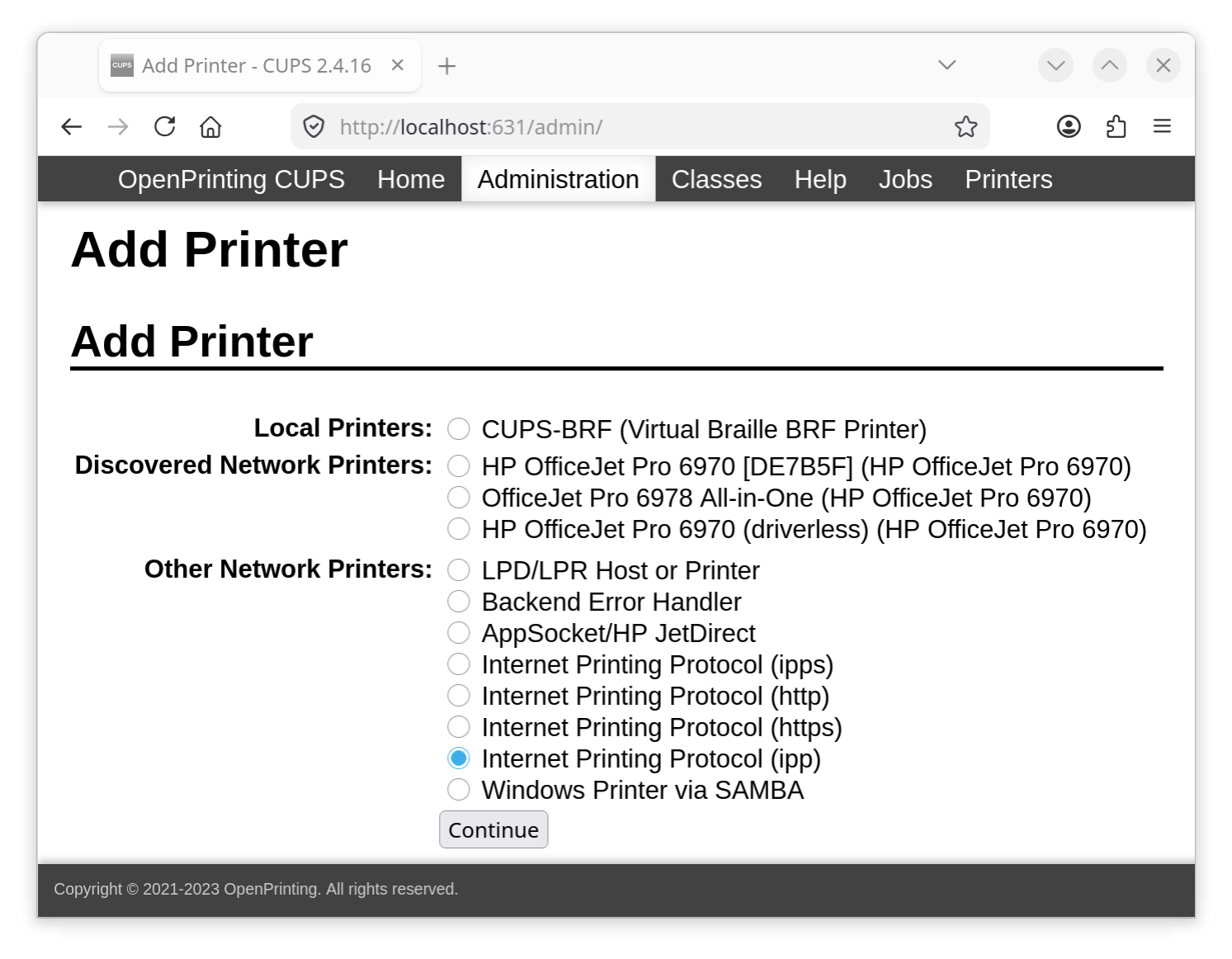
Ignore the "Discovered Network Printers". Under "Other Network Printers", select the radio button "Internet Printing Protocol (ipps)". Hit "Continue".
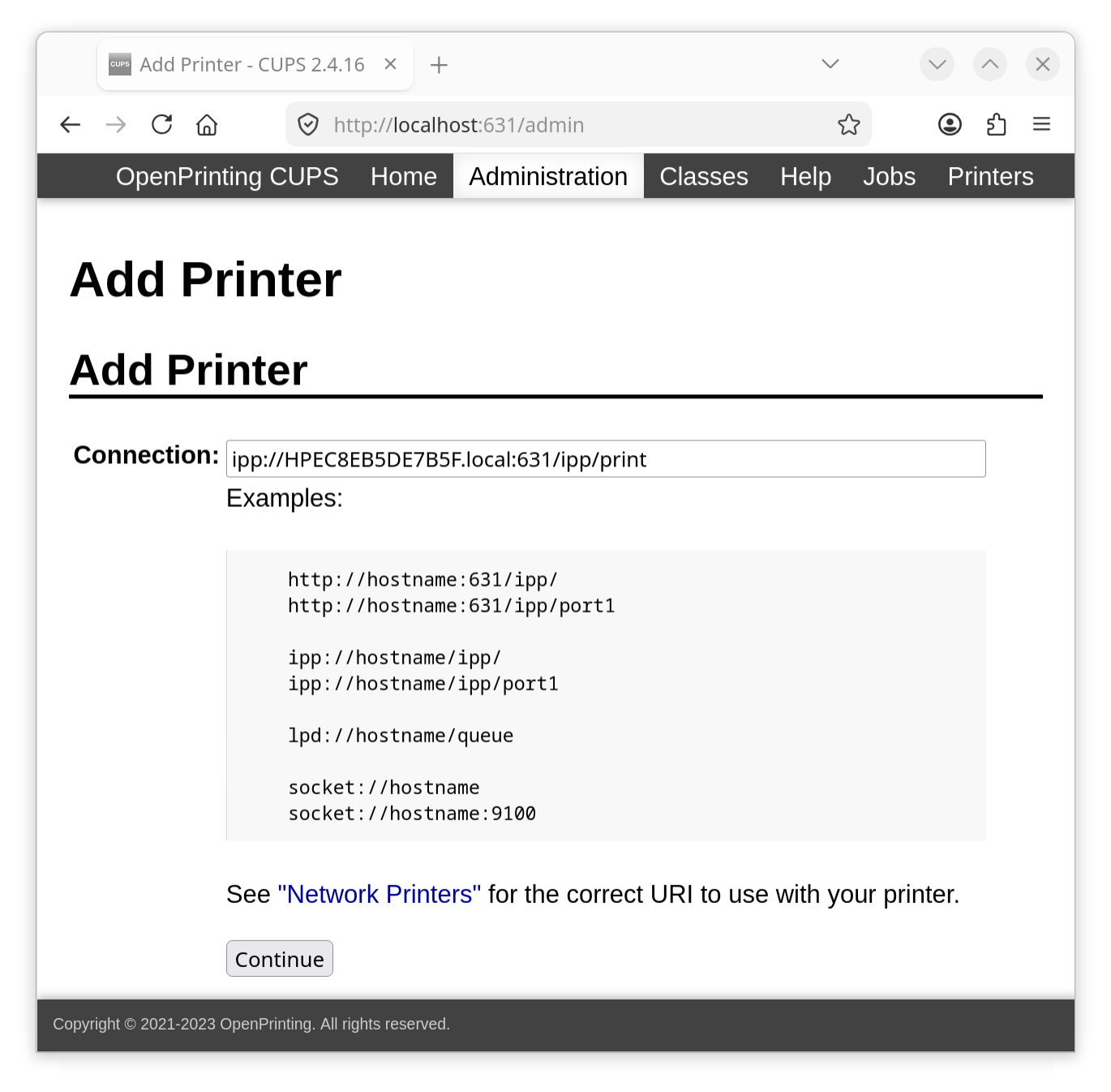
In the "Connection" dialog box, past the results of the ippfind command.
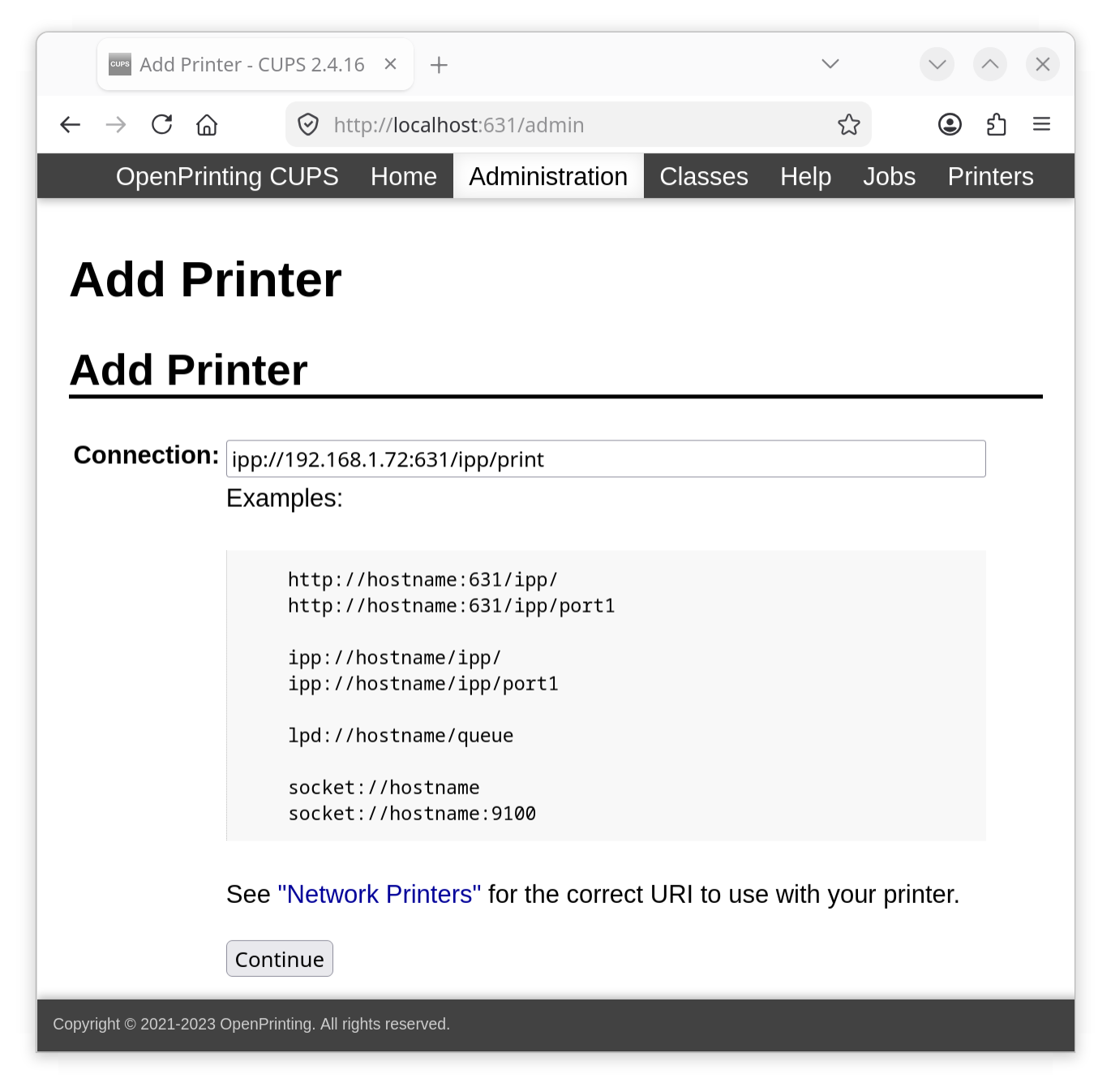
If the driverless printer has a static IPv4 address, substitute the IPv4 address in place of "host_name.local".
After you have entered the connection into the dialog box, hit "Continue".
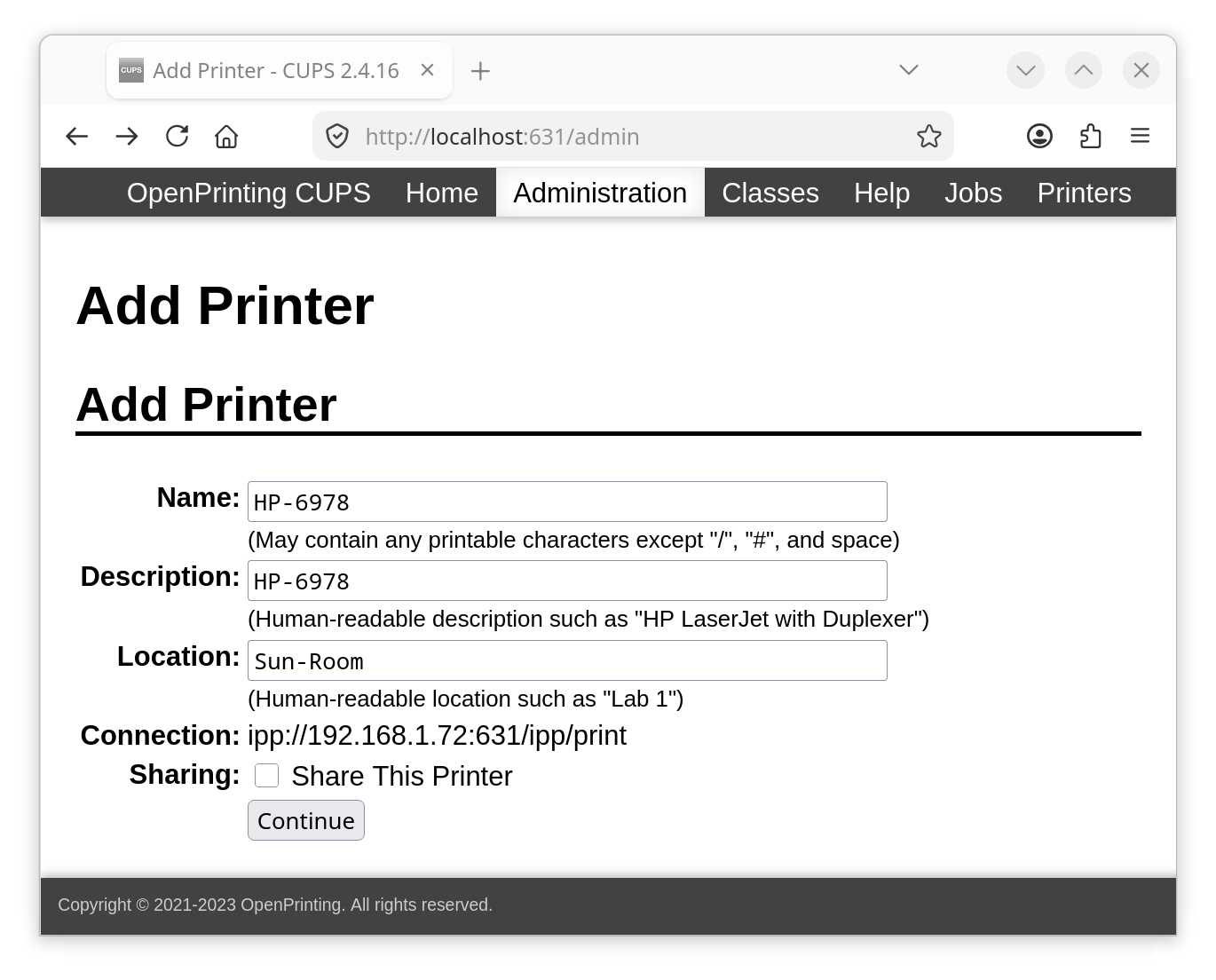
The "Name", "Description", and "Location" fields can be anything you chose. However, if you leave the "Location" field blank, it defaults to "Local", which is misleading. After filling in the fields, hit "Continue".
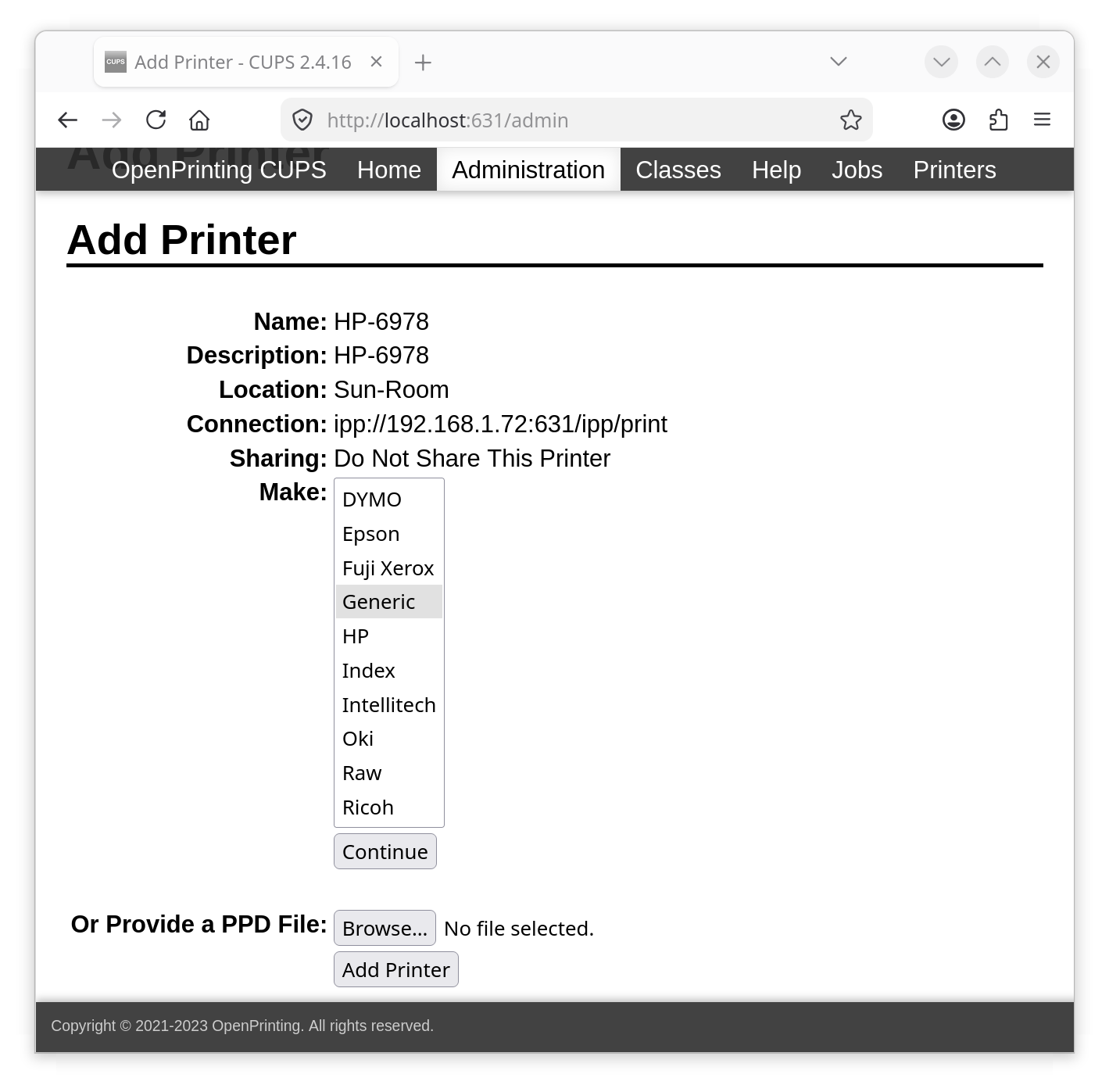
For the printer "Make" (manufacturer), it does not matter what you select. It is the next parameter that matters. I generally select "Generic" and "Continue" - Do Not Hit the "Add Printer" button .
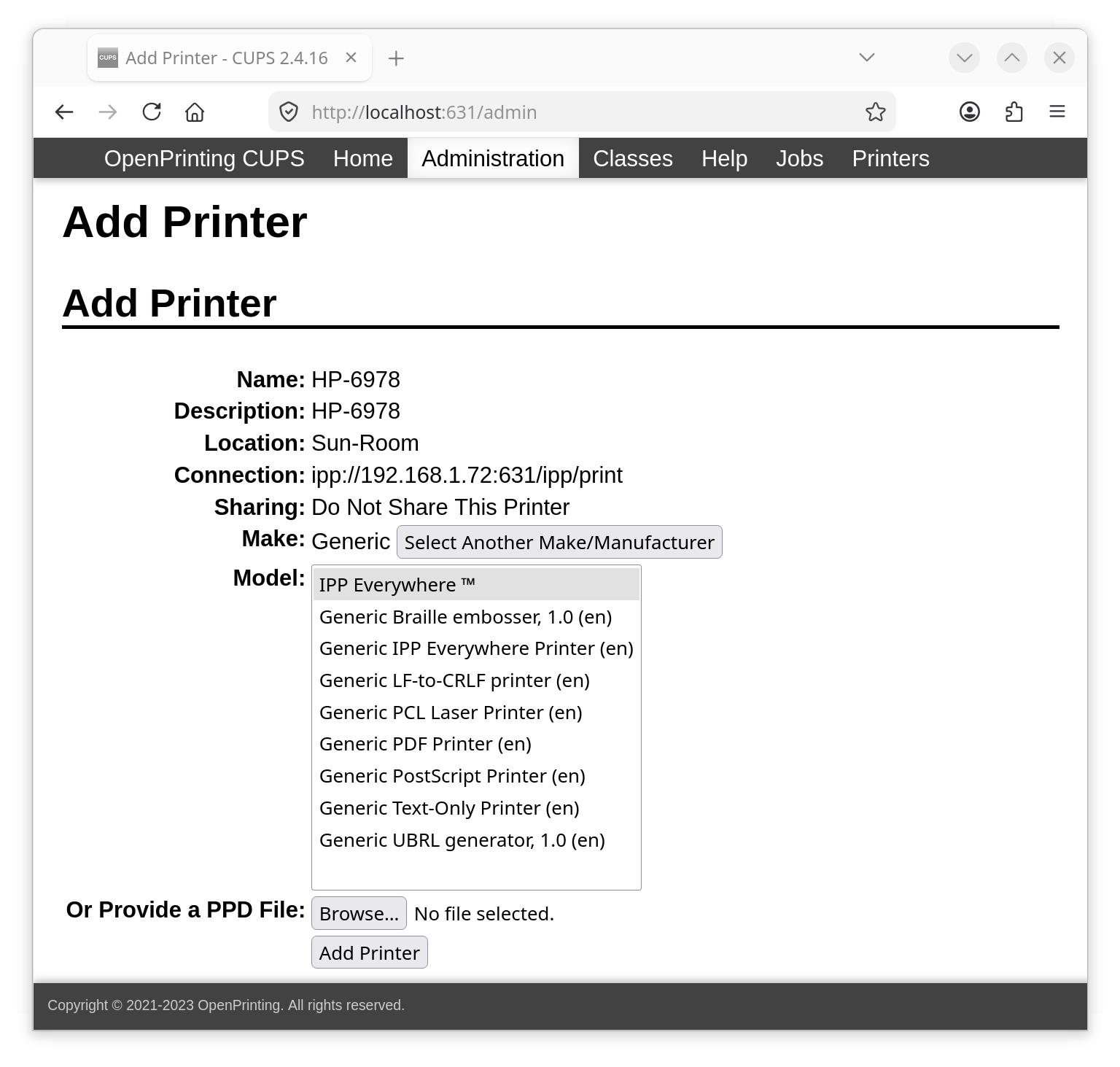
For the "Model", select IPP Everywhere. Now hit the "Add Printer" button.
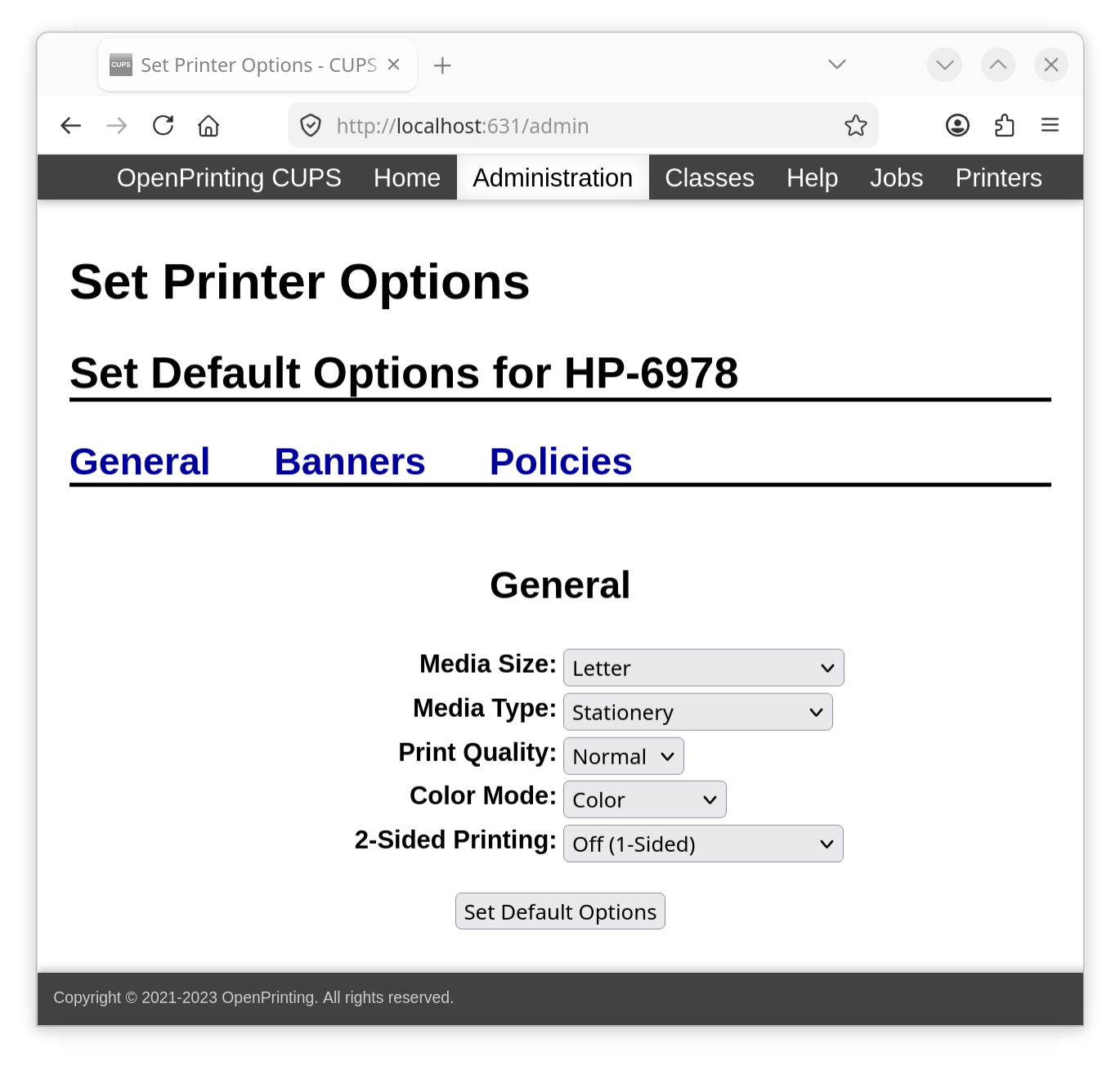
Select the default options for the printer and hit the "Set Default Options" button.
If you have duplicate entries for the Driverless Printer,
to hide old entry, in /etc/cup-browsed.conf
find (around line 41) and change the following line:
BrowseRemoteProtocols dnssd
to
BrowseRemoteProtocols none
This is matches cups-browsed.conf in Fedora.
Print a test page
You can now reconnect to your VPN and/or re-enable VPN autoconnect.
Wi-Fi Direct Printing
Wi-Fi Direct printing allows your Wi-Fi cable device i.e.smart phone, tablets or computer to make a Wireless
connection directly to a printer with using a wireless router or access point. All Microsoft Windows 10 and 11
suport Wi-Direct printing. All Linux-based platforms support Wi-Fi Direct. Apple devices, such as the iPhone
and iPad do NOT support WiFi Direct. They use AirPrint, AirDrop and AirPlay.
Google's Cloud Printing
Built into Android devices is Google Cloud Printing. It allows you to print files from
any device anywhere - whether you are on the same Wi-Fi network as the printer or not.
ePrint
ePrint is a secure cloud based service that lets you print from anywhere using an email account
and active internet connection. Setting this up varies from manufacture to manufacturer. It
works by assigning an email address to the printer. HP's ePrint work by installing HP Smart on
you phone via Apple App Store or Google Play or on your computer via Microsoft or Mac App Store.
For Linux there is EPrints which is free from https://www.eprints.org/uk/.
References:
References
© Copyright Dr. Ray Franco, PhD, PE | 2006-2025. All rights reserved.