Update on 2026-5-7
I wanted to send print jobs wirelessly to my printer from my Windows PC, Linux Desktop PC (x86), Raspberry Pi (Arm), Apple Laptop, iPad, and iPhone, and I did not want to install printer drivers in each of these devices. To accomplish this, I decided to use the USB port on Raspberry Pi Zero 2-W to control the printer, and the built in Wi-Fi for wireless communications. That is, I wanted to turn a non-driverless Print Printer into a driverless Printer with a Pi Zero 2-W ($15).
Give wlan0 a static ip address on your network. Provide a link for this.
Install the "Common Unix Printing System (CUPS):
sudo apt install cups
Add the user to the group line printer administrators:
sudo gpasswd -a user_name lpadmin
reboot
Install the HPLIP drivers
sudo apt install hplip
Enable the Web Interface:
sudo cupsctl WebInterface=yes
Enable remote administration and remote-any to the server:
sudo cupsctl --remote-admin --remote-any --share-printers
reboot
In the next section, you will get a warning, "Print Drivers and raw queues are deprecated, and will stop working in future versions of CUPS". This is probably years away [9], but just in case:
sudo apt-mark hold cups
(See the section below CUPS Version and Updating.)
Shutdown your CUPS Server:
sudo shutdown now -h
and remove its power source.
In addition, to being a print server, cups has a built-in Webserver. The rest of the installation will be done using cups' built-in webserver.
Connect the usb port of your cups server to the usb port of the printer. Power up the printer and the cups server.
Open a web browser and in the address bar:
https://ip_address_of_cups_server:631
Where ip_address_ of_cups_server is the static ip address you assigned it.
Ignore the "Warning: Potential Security Risk Ahead".
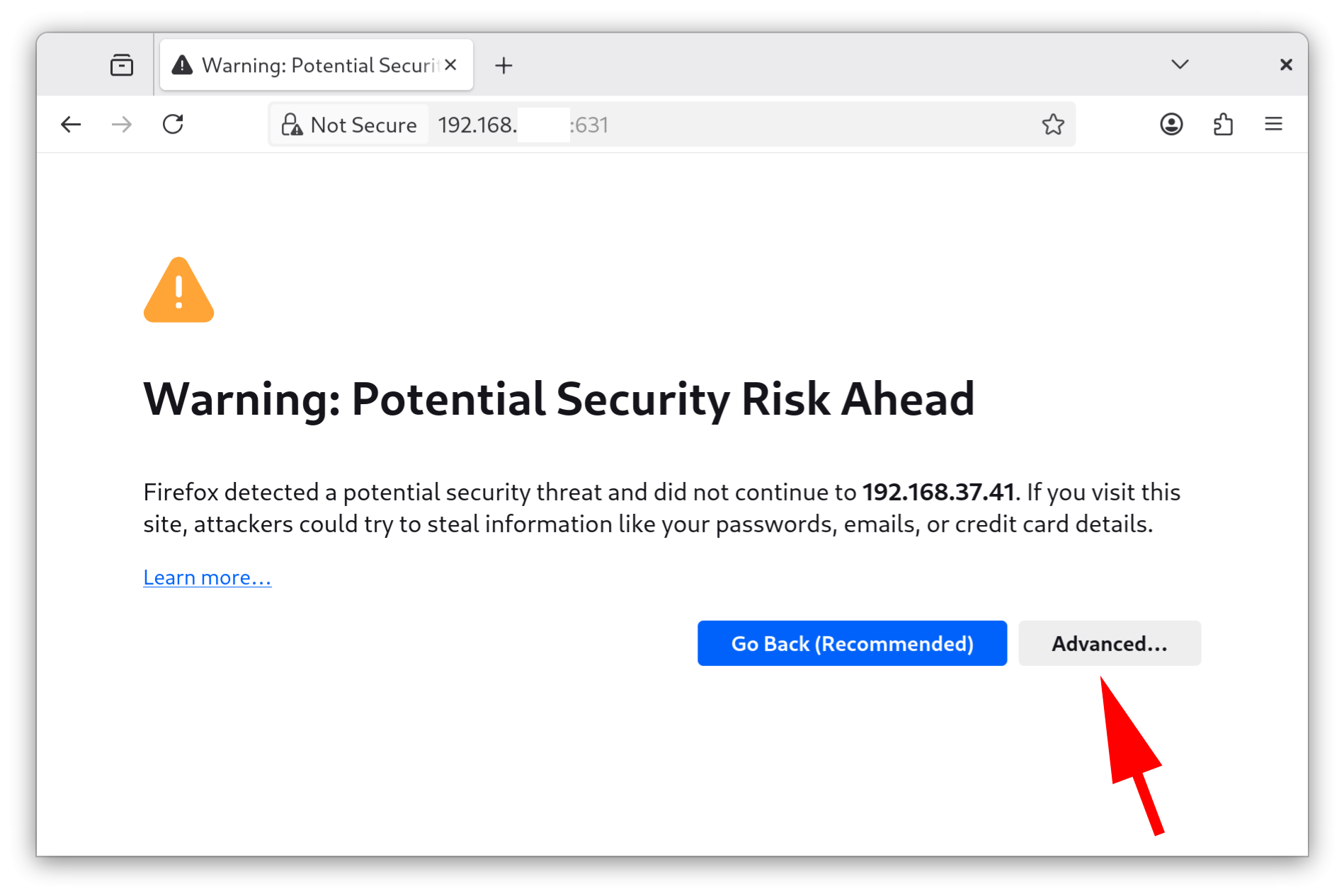
Click on the Advanced... button.
Click on Accept the Risk and Continue
Click on the Administration tab.
Enter your username and password
Under Printers:
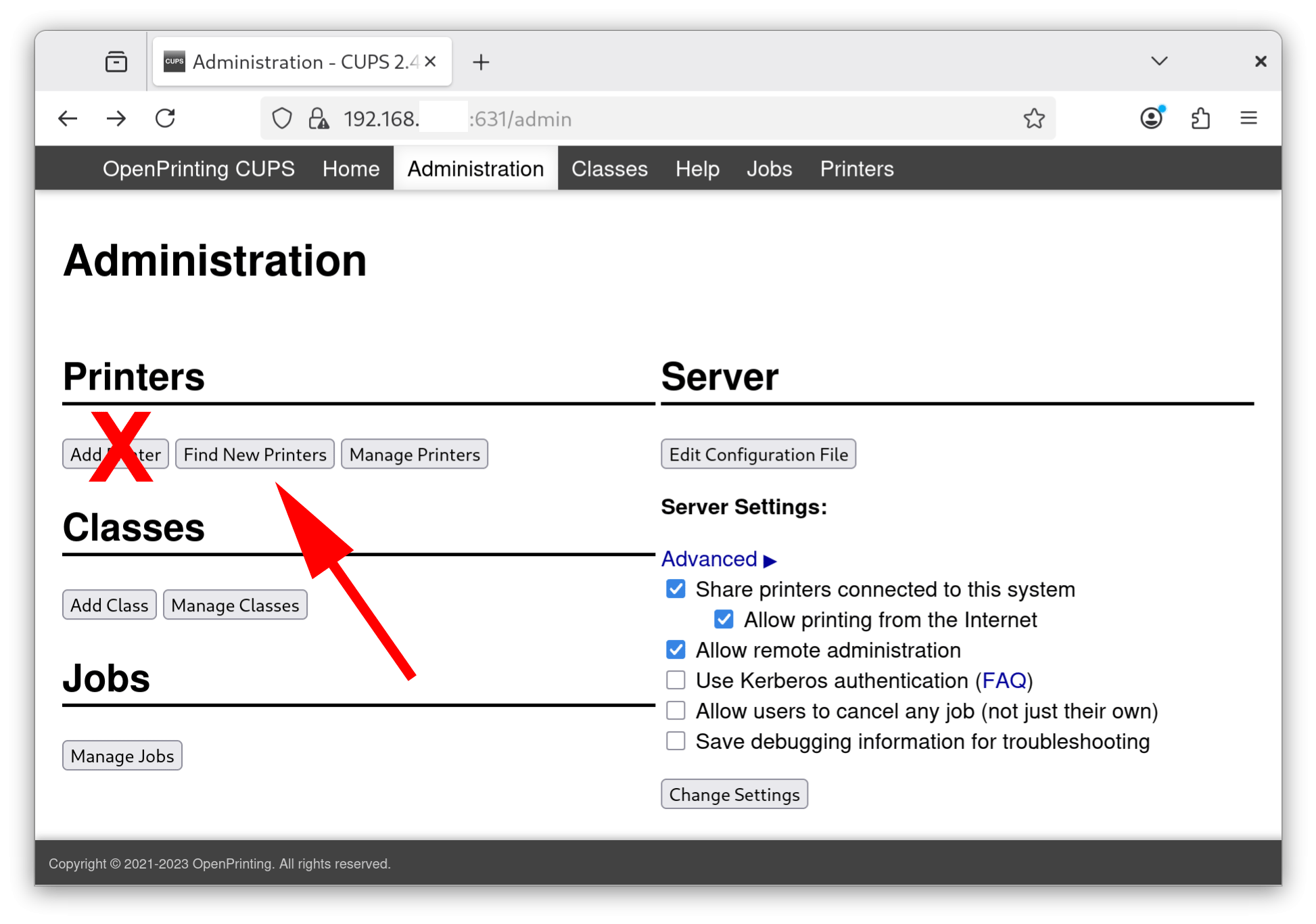
Your printer may not show up the first time. Just repeat the "Find New Printers" process until your printer shows up.
Under Manufactures, select HP, and "continue" (just below the selection box).
Under Model, Select HP LaserJet_1320_Series_PCL3 cups 3.22.10. There are several drivers for HP 1320 printers, including a postscript driver (recommended). I did not have good luck with this driver. For some reason, each driver appears to be repeated four times in the list box.
Under Maintenance, print a test page.
Tests by printing an email from your iPhone.
On Debian to see which version of CUPS you are running:
sudo apt policy cups
The current version of cups is 2.4.10-3+deb13u2 (Feb 2026). Support for print drivers and raw queues will not end until version 3 of cups. This will be years from now [9].
To check that updates to cups are being held:
sudo apt-mark showhold
To upgrade to a newer 2.x version, release the hold:
sudo apt-mark unhold cups && sudo apt upgrade -y
After the upgrade, re-enable the hold:
sudo apt-mark hold cups
Printing is a basic task for a computer, and it should be simple. However, in Linux it depends on the distribution, and if you use a VPN, its not simple. No one should have to spend days setting up clients, with different OS's (or distributions), to work with a driverless network printer. This should be plug-and-play, but it is not. Nothing has frustrated me more about Linux than driverless printing. It is one of the reasons that Linux is not mainstream!
For a client to print to a driverless printer (host), it has to be able to discover and connect to the driverless printer. This is done by protocol's such as:
These protocols work with both static and dynamic host (dhcp). They associate a hostname with an IP addresses.
For Debian and the Raspberry Pi OS, if you are not running a VPN such as Nordvpn, driverless printers automatically show up in the client's cups web interface (http://localhost:631/printers) and work. However, it is not set up correctly.
Since the client is running Linux, the driver should be IPP Everywhere and it is not.
If you are running Fordora, driverless printers will not show up in the client's cups web interface.
To the best of my knowledge, the following works on all Linux distributions:
If you are using a VPN such as Nordvpn, you must whitelest the the subnet the driveless printer is on or turn the option lan-discovery on. The latter works better, but eventally you will probably get the message: "No suitable destination host found by cups-browsed" in the clients cups web interface (http://localhost:631). To consistently connect to the driverless printer, you will need to assign the driverless printer a static IPv4 address and substitue the IPv4 address in the Add Printer command. This bypasses all the discovery protocols (avahi, mDNS, dnssd, etc.) used to convert hostnames into IP addresses.
If you make a mistake setting up your driverless printer, you can delete the printer with:
lpadmin -x the_printer_name_you_made_up
If you prefer, you can do this in the client's cups web interface (http://localhost:631). Add a new printer, and instead of selecting the printer, select the radio button, Internet Printing Protocol (ipp), enter the modify url (actual IPv4 address), and IPP Everywhere for the dirver. For detailed instructions see the next Section.
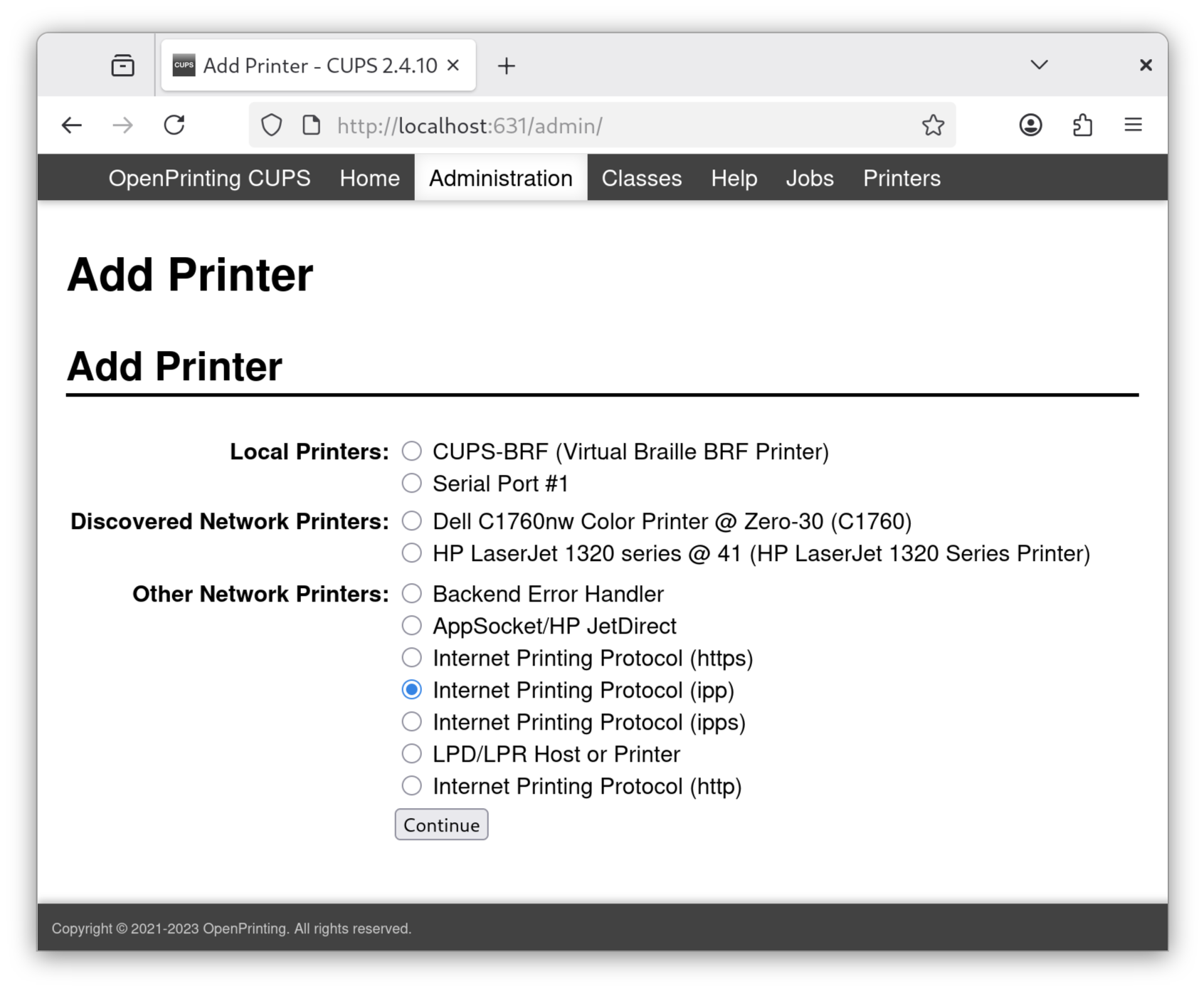
Ignore the "Discovered Network Printers". Under "Other Network Printers" select the radio button, "Internet printing Protocol (ipps)". Hit "Continue".
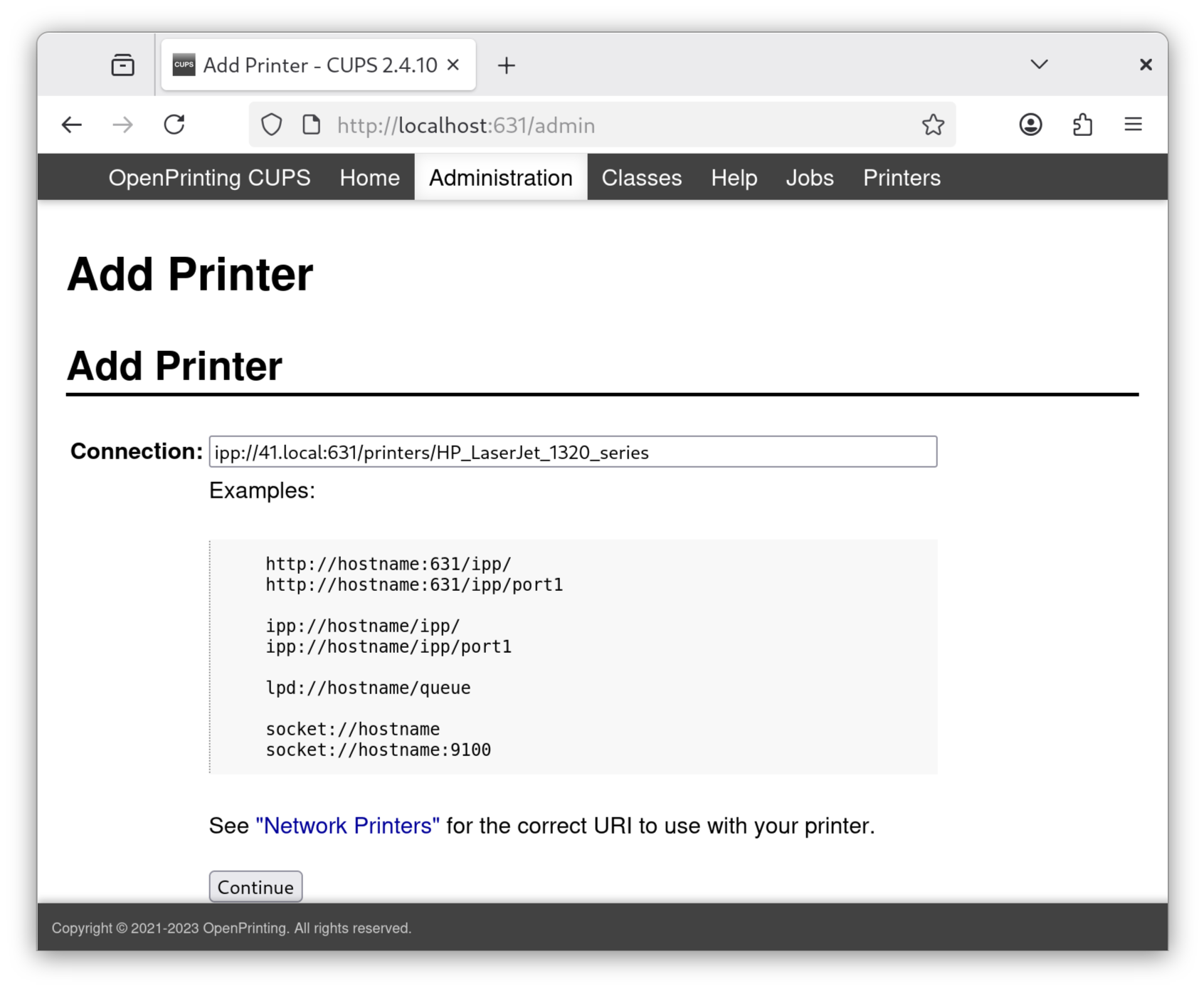
In the "Connection" dialog box, paste the results of the ippfind command. DO NOT HIT CONTINUE.
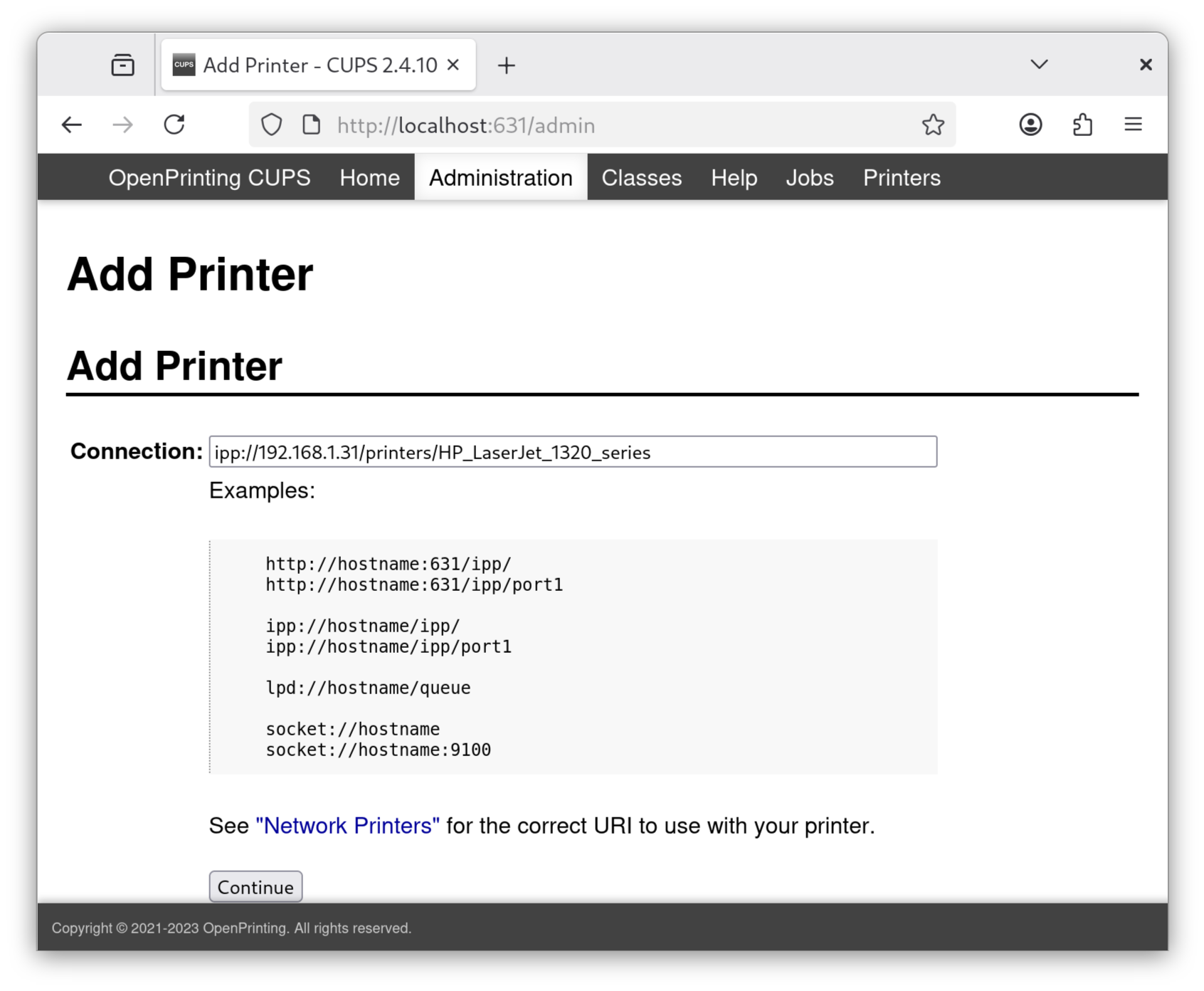
In the "Connection" dialog box after "ipp:" substitue the static IPv4 address of the driverless printer in place of host_name.local. Hit "Continue".
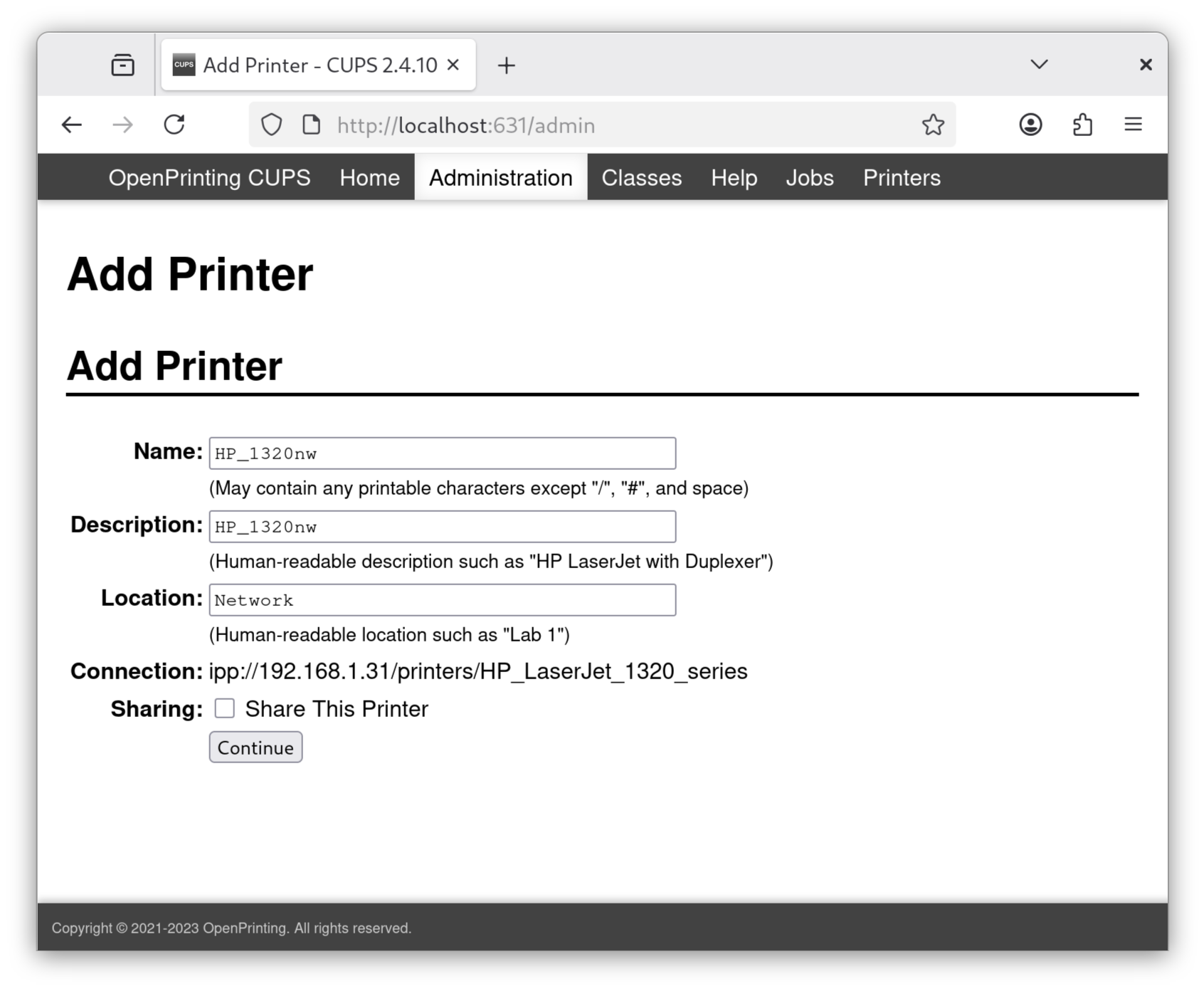
The "Name","Decription", and "Location" fields can be anything you chose. However, if you leave the "Location" field blank, it default to "Local", which is misleading. After filling in the fields, hit "Continue".
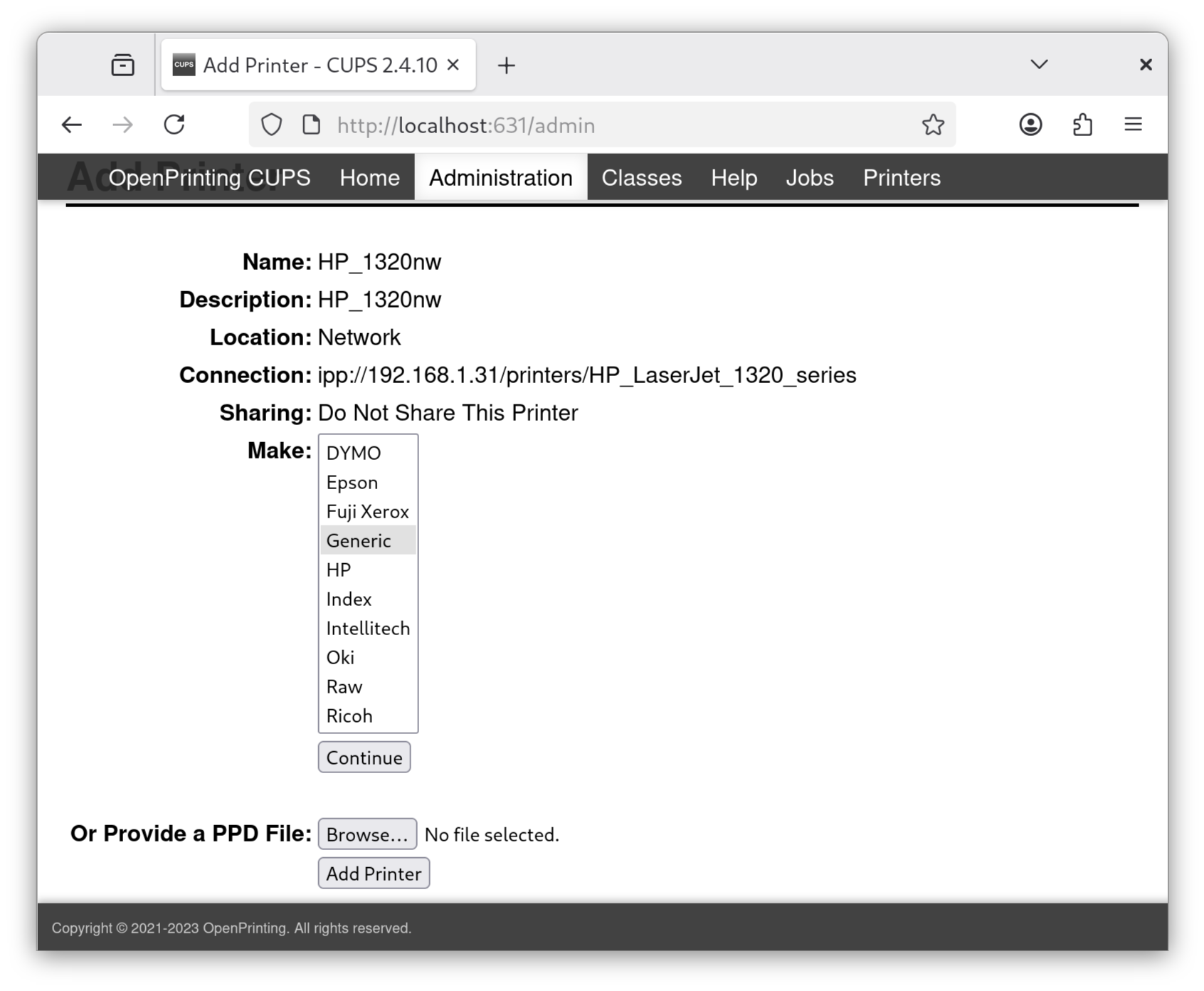
For the driverless printer "Make" (manufacturer), it does not matter what you select. Make a selection and hit "Continue". Do NOT HIT the "Add Printer" button.
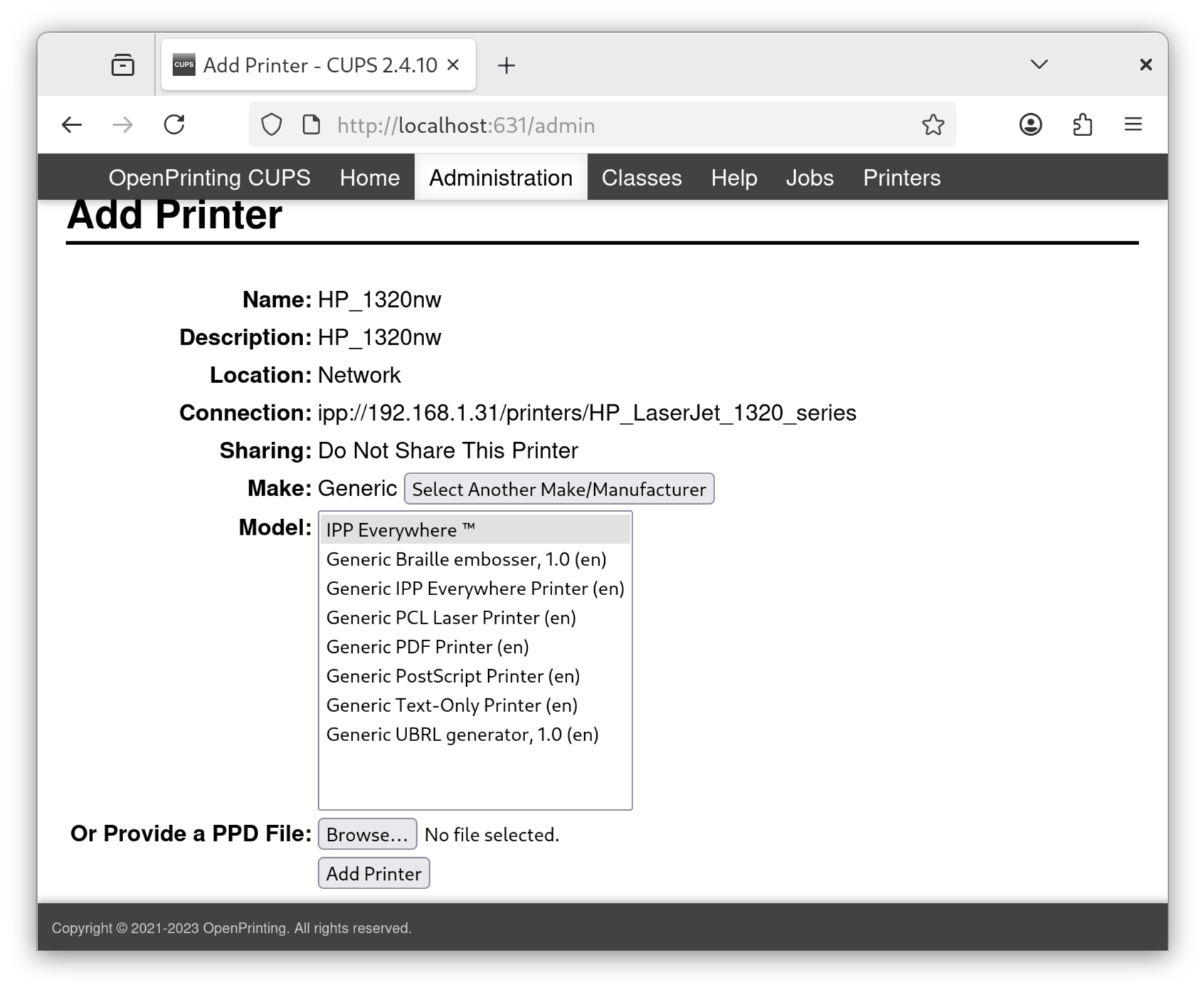
For the "Model", select IPP Everywhere. Now hit the "Add Printer" button
Connecting the HP_1320_Series driverless printer to Microsoft Windows is straight forward since it is Mopria-certified:
Settings -> Bluetooth & devices -> Printers & Scanners -> Add Device
Wait for your printer to appear and click Add Device.
It will say Connecting to Printer. Be Patient. At the end, installing printer will be quickly displayed. You may only see that Connecting to Printer disappeared.
To print, select the printer as you would any other device.
The output of:
avahi-browse -rt _ipp._tcp
wlp1s0f0 IPv4 HP OfficeJet Pro 6970 [DE7B5F] _ipp._tcp local hostname = [HPEC8EB5DE7B5F.local]
is:
wlp1s0f0 IPv4 HP LaserJet 1320 series @ 41 _ipp._tcp local
hostname = [41.local]
address = [192.168.37.41]
port = [631]
txt = [
"printer-type=0x809016"
"Duplex=T"
"mopria-certified=1.3"
"URF=V1.4,CP1,W8,PQ3-4-5,RS300,DM1,FN3"
"TLS=1.2"
"UUID=612fa5e6-c5b0-3699-79fd-16b20adec25f"
"pdl=application/pdf,application/postscript,image/jpeg,image/png,image/pwg-raster,image/urf"
"product=(HP LaserJet 1320 Series Printer)"
"priority=0"
"note=Local Printer"
"adminurl=https://41.local.:631/printers/HP_LaserJet_1320_series"
"ty=HP LaserJet 1320 Series pcl3, hpcups 3.22.10"
"rp=printers/HP_LaserJet_1320_series"
"qtotal=1"
"txtvers=1"
]
For my Dell C1760nw:
eno1 IPv4 Dell C1760nw Color Printer @ Zero-30 Internet Printer local
hostname = [Zero-30.local]
address = [192.168.37.30]
port = [631]
txt = [
"printer-type=0x80900E"
"Color=T" "mopria-certified=1.3"
"URF=V1.4,CP1,W8,PQ4,SRGB24,RS300,FN3"
"TLS=1.2"
"UUID=c7e8c526-b6e0-356d-7690-2203d657166d"
"pdl=application/pdf,application/postscript,image/jpeg,image/png,image/pwg-raster,image/urf"
"product=(C1760)"
"priority=0"
"note=Zero-30"
"adminurl=https://Zero-30.local.:631/printers/Dell_C1760nw_Color_Printer"
"ty=Dell C1760 Foomatic/foo2hbpl1 (recommended)"
"rp=printers/Dell_C1760nw_Color_Printer"
"qtotal=1"
"txtvers=1"
]
In Debian 13 (trixie), cups maintains 3 log files that are defined in /etc/cups/cups-files.conf:
However, I do not see any page_log files in /var/log/cups.
On my Debian client I was not able to read the error_log files. I got the following error: "Unable to open listen socket for address [v1.::1]:631 - Cannot assign requested address". This Debian client was also running VM-ware. After, I ran:
sudo /usr/sbin/cupsctl --debug-logging
I could read the current error_log file, but not the archived files.
On a similar machine with a new install of Debian, I did not have any problems reading /var/log/cups/error_log, nor did I have to preceed cupsctl with /usr/sbin.
The gzip is used to compress the archived log files, and you need to use ungzip to extract them. They are single files. You can not use tar to extract these files. If you try to use tar on an archieved access_log, it will give you a message that the file header does not match a tar file. When I tried to use tar to extract an error_log archive, it did not give me any message nor did it extract the file.
© Copyright Dr. Ray Franco, PhD, PE | 2006-2023. All rights reserved.