Update on 2026-05-15
The zeroconf protocol is a set of protocols that allow computers and network peripherals (printers, file servers, etc.) to be interconnected and communicate with each other over a network without requiring any configuration by the user nor a central server.
Zero configuration networks can:
The local network in Photo 1 is composed of four Raspberry Pi 5B's connected to a five port ethernet switch. There is no DHCP server, and there is no connection to the Internet.
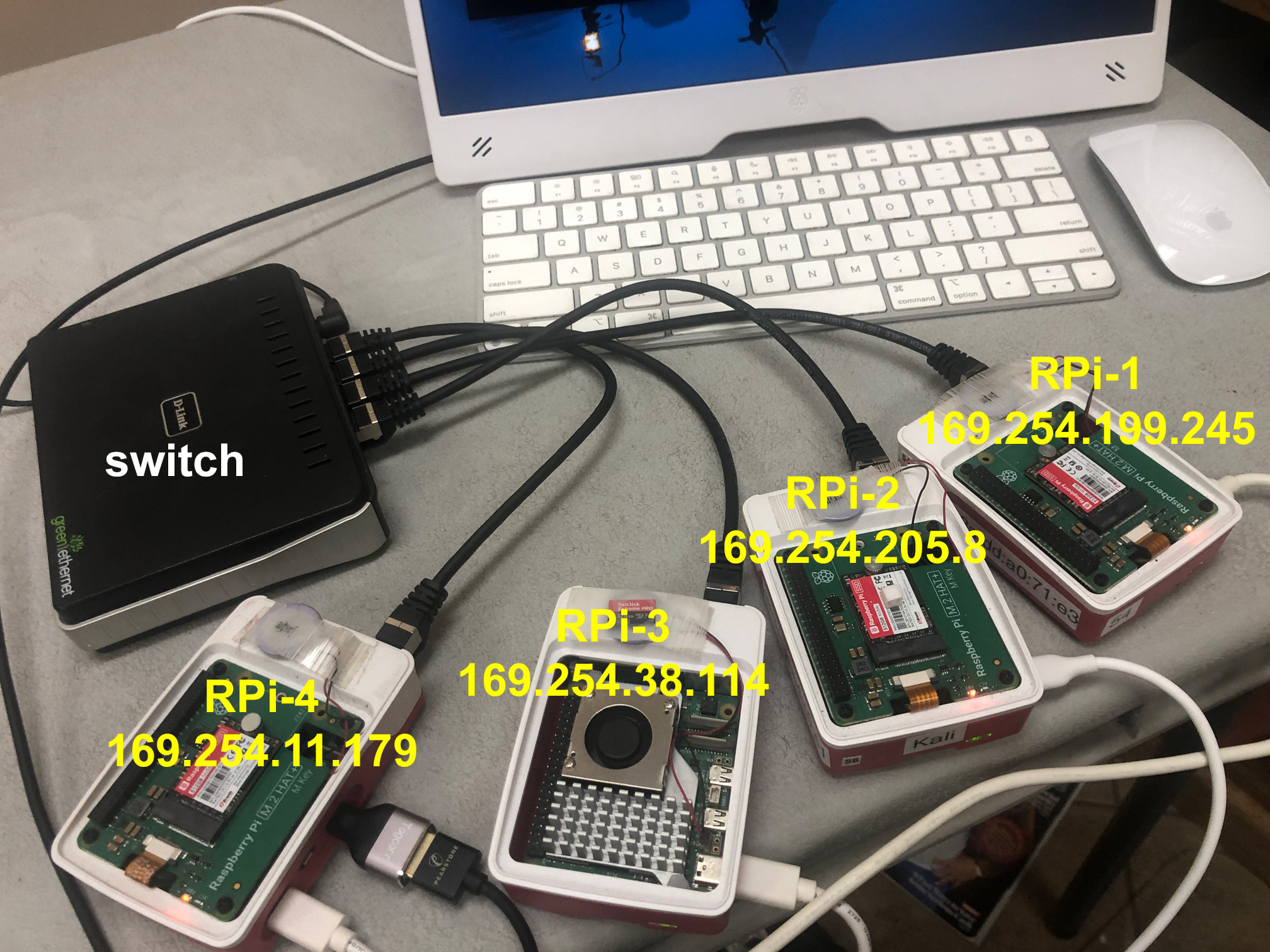
| Hostname | IPv4 Address |
|---|---|
| RPi-1 | 169.254.199.245 |
| RPi-2 | 169.254.205.8 |
| RPi-3 | 169.254.38.114 |
| RPi-4 | 169.254.11.179 |
For this to work with the Network Manager, I had to set the IPv4 method to "Link-Local".
Only one of the Raspberry Pi's is connected to a keyboard, mouse, and monitor. It can Secure Shell (ssh) into the other Pi's with the command:
ssh user_name@host_name.local
You can also ping another host with the command:
ping host_name.local
For a zero-configuration network to work properly, either port 5353 UDP needs to be open or IPv4 244.0.0.251.
Normally the avahi-daemon just sits there in the background silently doing its thing. However, for troubleshooting, you will need avahi-browse, which usually is not installed by default. To install it:
sudo apt install avahi-utils
For the network in Figure 1, to browse all, resolve addresses, and terminate (-art):
avahi-browse -art
and the output is:
+   eth0 IPv4 RPI-2                                         Device Info          local
+   eth0 IPv4 RPI-2                                         Microsoft Windows Network local
+   eth0 IPv4 RPi-4 [d8:3a:dd:e4:c9:e1]                     Workstation          local
+   eth0 IPv4 RPi-3 [d8:3a:dd:f2:c4:53]                     Workstation          local
+   eth0 IPv4 RPi-1 [d8:3a:dd:a0:71:e3]                     Workstation          local
+     lo IPv4 RPi-1 [00:00:00:00:00:00]                     Workstation          local
=   eth0 IPv4 RPi-4 [d8:3a:dd:e4:c9:e1]                     Workstation          local
   hostname = [RPi-4.local]
   address = [169.254.11.179]
   port = [9]
   txt = []
=   eth0 IPv4 RPI-2                                         Device Info          local
   hostname = [RPi-2.local]
   address = [169.254.205.8]
   port = [0]
   txt = ["model=MacSamba"]
=   eth0 IPv4 RPI-2                                         Microsoft Windows Network local
   hostname = [RPi-2.local]
   address = [169.254.205.8]
   port = [445]
   txt = []
=   eth0 IPv4 RPi-1 [d8:3a:dd:a0:71:e3]                     Workstation          local
   hostname = [RPi-1.local]
   address = [169.254.199.245]
   port = [9]
   txt = []
=     lo IPv4 RPi-1 [00:00:00:00:00:00]                     Workstation          local
   hostname = [RPi-1.local]
   address = [127.0.0.1]
   port = [9]
   txt = []
=   eth0 IPv4 RPi-3 [d8:3a:dd:f2:c4:53]                     Workstation          local
   hostname = [RPi-3.local]
   address = [169.254.38.114]
   port = [9]
   txt = []
In addition to being a workstation, "RPi-2.local", is also a file server that uses the Server Message Block (SMB) protocol developed by Microsoft ("[Model=MacSamba"] and "Microsoft Windows Network Local"). The Linux implementation of the SMB Protocol is Samba.
To list a particular service type use:
| Service Name | Service Type | Port No. |
|---|---|---|
| Internet Printing Protocol | _ipp._tcp | 631 |
| Internet Printing Protocol Secure | _ipps._tcp | 631 |
| Server Message Block (file server) | _smb._tcp | 445 |
| Network File System (nfs) | _nfs._tcp | 2048 |
| Apple Filing Protocol over TCP (AppleTalk) | _afpovertcp._tcp | 548 |
| Web Server | _http._tcp | 80 |
For example, to list just file servers:
avahi-browse -rt _smb._tcp
For the network in Photo 1, the output is:
+   eth0 IPv4 RPi-2                                           Microsoft Windows Network local
=   eth0 IPv4 RPi-2                                           Microsoft Windows Network local
   hostname = [RPi-2.local]
   address = [169.254.205.8]
   port = [445]
   txt = []
Nowaday, nearly everyone has Internet access, and the router that connects to Internet has a built-in DHCP server that automatically assigns IP addresses.
The network in Photo 2 depicts a zero-configuration network with a router that has a built-in DHCP server and a 4 port Ethernet switch.
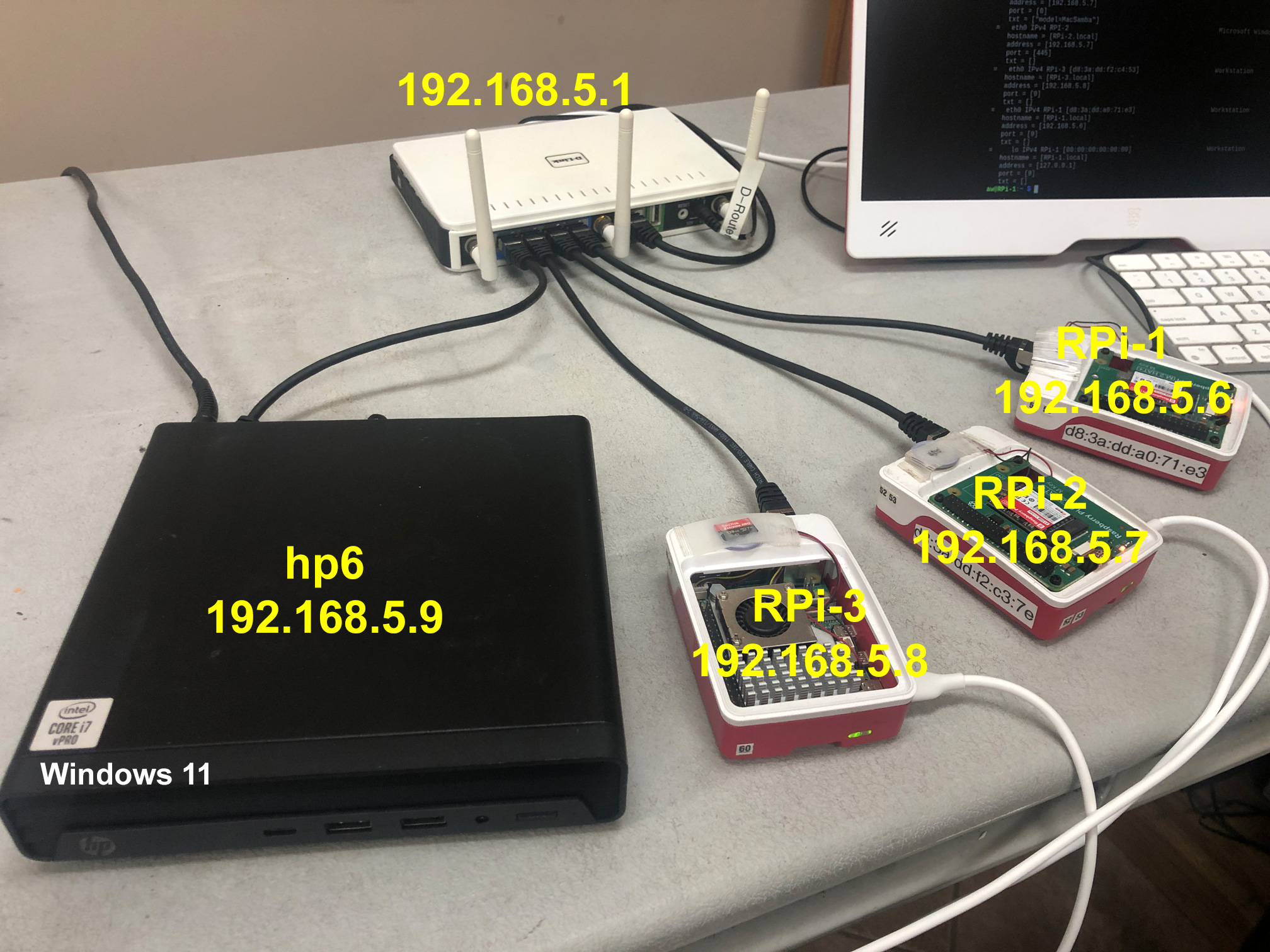
| Hostname | IPv4 Address |
|---|---|
| RPi-1 | 192.168.5.6 |
| RPi-2 | 192.168.5.7 |
| RPi-3 | 192.168.5.8 |
| hp6 | 192.168.5.9 |
For the network in Photo 2:
avahi-browse -art
and the output is:
+   eth0 IPv4 RPI-2                                         Device Info          local
+   eth0 IPv4 RPI-2                                         Microsoft Windows Network local
+   eth0 IPv4 RPi-3 [d8:3a:dd:f2:c4:53]                     Workstation          local
+   eth0 IPv4 RPi-1 [d8:3a:dd:a0:71:e3]                     Workstation          local
+     lo IPv4 RPi-1 [00:00:00:00:00:00]                     Workstation          local
=   eth0 IPv4 RPI-2                                         Device Info          local
   hostname = [RPi-2.local]
   address = [192.168.5.7]
   port = [0]
   txt = ["model=MacSamba"]
=   eth0 IPv4 RPI-2                                         Microsoft Windows Network local
   hostname = [RPi-2.local]
   address = [192.168.5.7]
   port = [445]
   txt = []
=   eth0 IPv4 RPi-3 [d8:3a:dd:f2:c4:53]                     Workstation          local
   hostname = [RPi-3.local]
   address = [192.168.5.8]
   port = [9]
   txt = []
=   eth0 IPv4 RPi-1 [d8:3a:dd:a0:71:e3]                     Workstation          local
   hostname = [RPi-1.local]
   address = [192.168.5.6]
   port = [9]
   txt = []
=     lo IPv4 RPi-1 [00:00:00:00:00:00]                     Workstation          local
   hostname = [RPi-1.local]
   address = [127.0.0.1]
   port = [9]
   txt = []
Windows 11 does implement DNS-SD, therefore the HP6 computer is not listed as a Workstation.
Windows 11 does implement the mDNS (name resolution), but it does not implement DNS-SD (servicce discovery). Therefore, hp6.local is not listed as a workstation in the output of avahi-browse -art, but if you know the hostname.local, it willresolve the IP address:
avahi-resolve -n hp6.local
hp6.lcal 192.168.5.9
However, it will not resolve address:
avahi-resolve -a 192.168.5.9
results in a timeout error!
Trying to determine what protocol Windows 11 uses in place of DNS-SD is like trying to hit a moving target; it keeps moving.
I believe that Microsoft currently used Web Service Dynamic Discovery (WS-Discover or WSD) to discovery services. WS-Discovery is another multicast discovery protocol that uses Web Services Standards instead of DNS-SD for disovering services. WS-Discovery uses IPv4 address 239.255.255.250 or IPv6 ff02::c and port 3702 TCP and UDP. WS-Discover is the protocol name whereas Web Services for Devices (WSD) is the API.
Previously, Microsoft use NetBIOS/SMBv1 for discovering services.
Microsoft's new ignitaves is Windows Protoected Print (WPS) mode. Sometime is 2027, they intent to do away with legancy print drivers.
There is also Universal Plug and Play (UPnP)
| Windows Internet Naming Service | WINS | 137 | UDP |
Although NetBIOS Name Service (NBNS) or Windows Internet Name Service (WINS) is depreciated, I am still seeing NBNS traffic using WireShark from my Windows 11 machine. It looks like Microsoft my keep supporting WINS through November 2034 []. I am also seeing Simple Service Discovery Protocol (SSDP) traffic.
-- -- -- -- -- -- -- -- -- -- --
SSH
Althought Windows 11 claims to have a built-in SSH Client and Server, only the client is installed by default.
To install & Enable OpenSSH:
The configuration file for avahi-daemon is /etc/avahi/avahi-daemon.conf.
Avahi-browse -art had problems seeing one of my Raspberry Pi's. I traced this to its configuration file. Somehow
[publish]
publish-workstation=yes
got changed to no [1].
You can disable Avahi with the commands:
sudo systemctl stop avahi-daemon
sudo systemctl disable avahi-daemon
However, this may not keep other services from restarting it.
To keep avahi from being started manually or by other services:
sudo systemctl mask avail-daemon
Masking a service links its unit file to /dev/null, making it impossible to start.
On my Raspberry Pi Zero 2W, I had to mask the service.
VPNs and firewalls can block mDNS and/or DNS-SD. On a VPN, either whitelist IPv4 244.0.0.251 (IPv6 ff02::fb) or port 5353 UDP.
As depicted in the output of avahi-browse above, all a hacker has to do is gain access to your network, and immediately available to him is the mac address, IP address, and host_name of every device on your network. This is a trust all devices on the network security model.
The US National Security Agency (NAS) and the US National Institute of Stands and Technology (NIST) recommends a zero trust model. That is, trust no device on the network.
Below are the devices I discovered on my home network, as a non-priviledged user, with "avahi-browse -art":
| LG TV | ✅ |
| Samsung TV | ✅ |
| Echo Show | ✅ |
| HP Printer | ✅ |
| Google/Nest Thermostates | X |
| Amazon/Blink Cameras | X |
| ATT/Nokia Router | X |
As one author put it, mDNS is everywhere except for the Enterprise [1], which blocks it. Another author said it is a penteration tester's dream [2].
In the past Microsoft has used:
Apple - Apple Talk
Microsoft - NetBIOS
References:
© Copyright Dr. Ray Franco, PhD, PE | 2006-2026. All rights reserved.